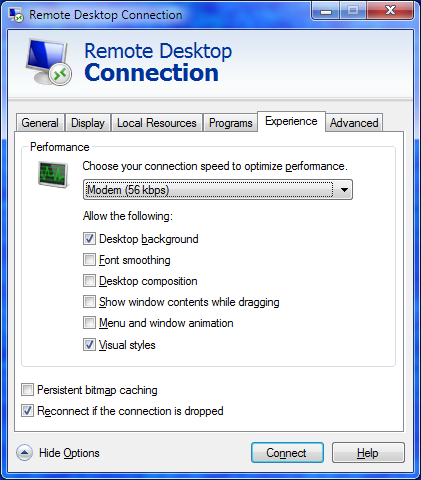
For the optimal experience and consistent look and feel make the suggested changes to your Remote Desktop Connection, before connecting. Once connected, change your “Theme” to Windows 7 Basic.
Display
- Preferably – High Quality 32 bit
- Minimum – True Color 24bit
Experience
- Do Not Select – Detect connection quality automatically
- Set – Allow the following = Visual Styles
- Set – Allow the following = Desktop Background
Change the “Theme” to Windows 7 Basic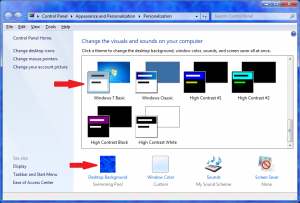
- Right click the Desktop, select Personalize (sic)
- Click the Windows 7 Basic Theme to select and apply it.
- Change the Desktop Background to a solid colour
- Less bandwidth consumed and faster screen updates
- Click Desktop Background in bottom row
- Change Picture Location to Solid Colors (sic)
I only seem to get the option of High colour (15 bit) and High colour (16 bit) how big a problemis this, and is there anything I can do about it?
Probably a local configuration issue on your PC, perhaps drivers, screen resolution or hardware configuration. However selecting High Color (16bit) will correctly render the colour palette used is SUD.